Showing posts with label Quick Tip. Show all posts

Sunday, March 11, 2018

Quick Tip - Stop Paying Too Much for a Family’s iCloud Drive Storage

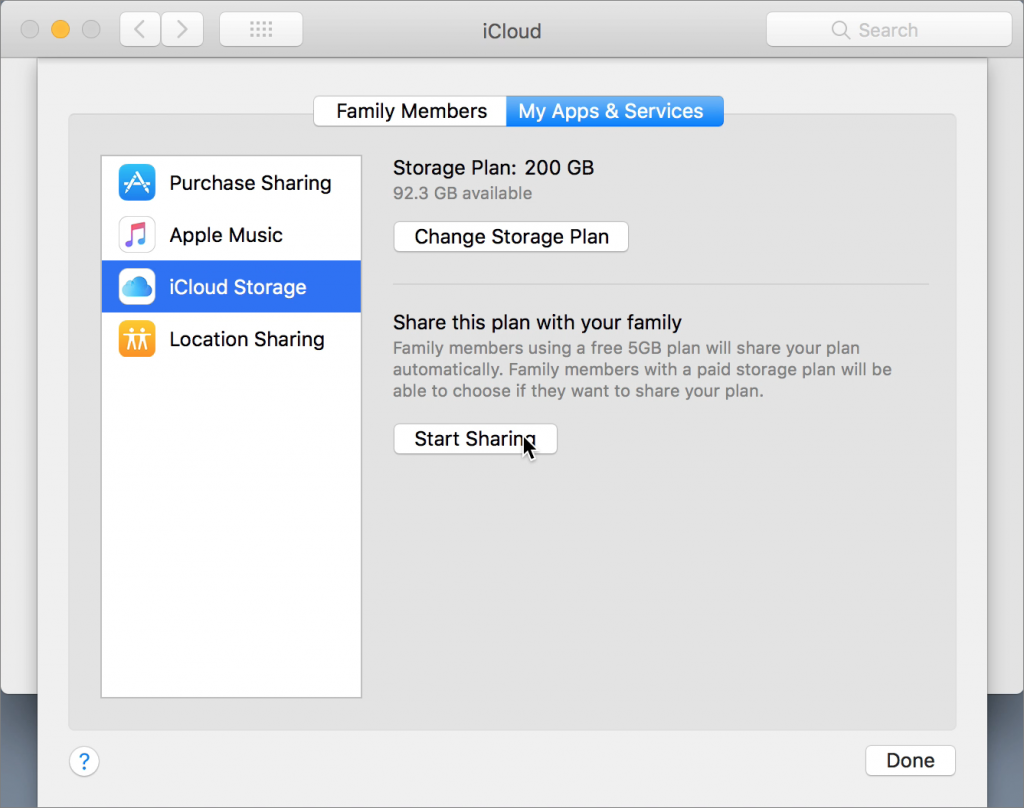
Apple gives iCloud users 5 GB of free storage, but that fills up fast with iCloud Photo Library, iOS backups, iBooks, and more. Until iOS 11 and macOS 10.13 High Sierra, each person in a family had to buy extra iCloud space separately. Happily, Apple has now made it so everyone in a Family Sharing group can share a single 200 GB ($2.99 per month) or 2 TB ($9.99 per month) plan. 

The family organizer can start sharing storage in High Sierra or iOS 11 as follows: on the Mac, go to System Preferences > iCloud > Manage Family > My Apps & Services > iCloud Storage; in iOS, go to Settings > Your Name > Family Sharing > iCloud Storage. Any other family member can then cancel their paid plan and join the Family Sharing plan using their iCloud Storage screen. Its a great money saving tip!

Monday, February 19, 2018

Quick Tip - Here’s How to Teleport to a Specific Mac Folder While Opening or Saving


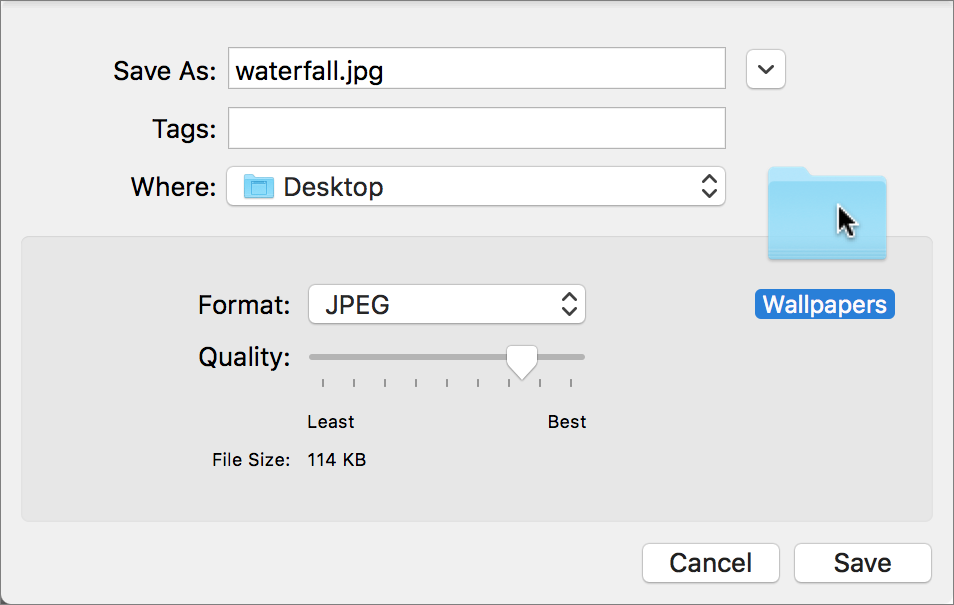
Ever wanted to jump to a particular folder on your Mac while opening or saving a file? You can, thanks to a clever Finder trick. Whenever you have an Open or Save dialog open in an app, switch to the Finder, find the folder you want to access, and drag its icon into the dialog. Presto—instant navigation to that folder! This trick even works if you drag the proxy icon—the little icon in the title bar of any window—for any folder.

dropping-icon-Save-dialog

Wednesday, July 26, 2017

Quick Tip - Navigate System Preferences easier.

Find System Preferences Faster by Sorting Alphabetically

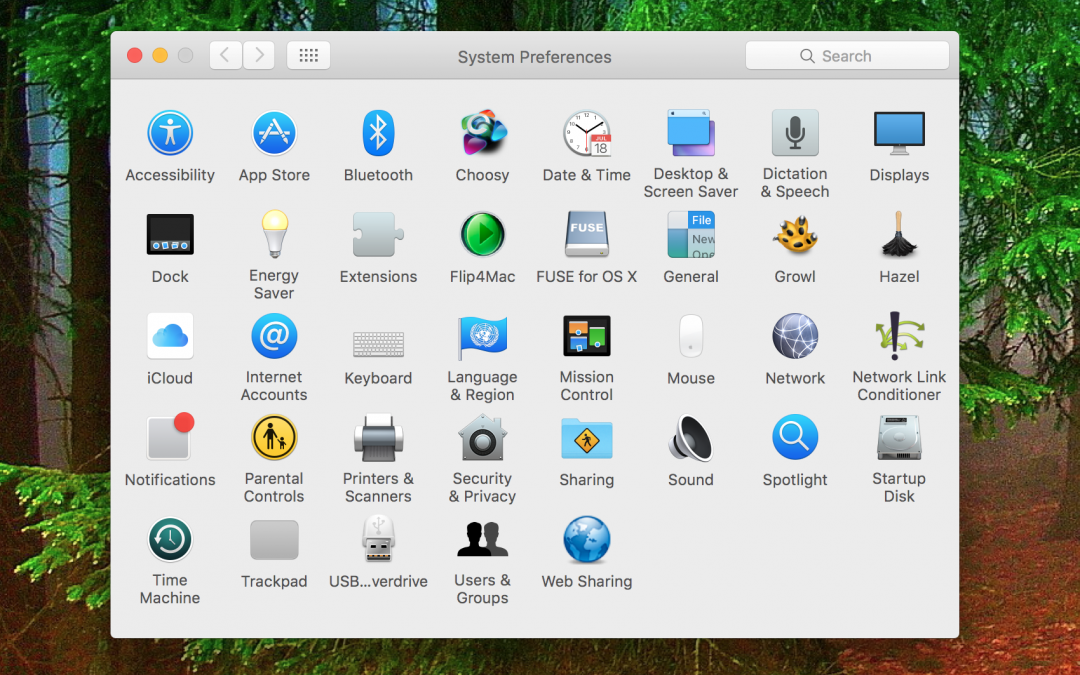
Quick Tip! - By default, System Preferences on the Mac organizes its preference panes by category. However, it doesn’t label those categories, making the organization nearly inscrutable. If you have trouble finding the Accessibility preference pane, for instance, which ends up in the bottom right when sorted by category, there’s a better way.

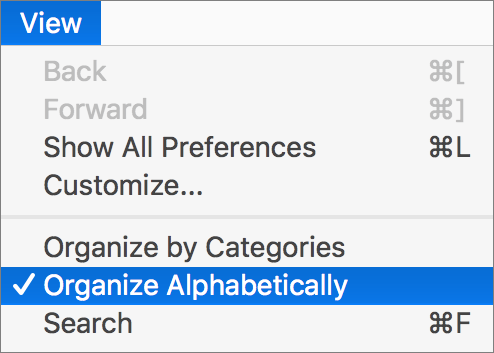
With System Preferences open, choose Organize Alphabetically from the View menu (yes, System Preferences has menus!) to arrange the icons alphabetically by name, putting Accessibility in the upper left. The preference panes are also listed alphabetically in that View menu.

Monday, July 17, 2017

Quick Tip - PSA: Hot Cars Can Kill iPhones


Just as you wouldn’t leave your pooch in a car parked in the sun, you should be careful with your iPhone. It’s rated for use at up to 95℉ (35℃) and can be stored at up to 113℉ (45℃), but temperatures inside a parked car on a sunny day can exceed 130℉ (55℃) within 30–60 minutes. That can both temporarily disable your iPhone and damage the battery more permanently. 

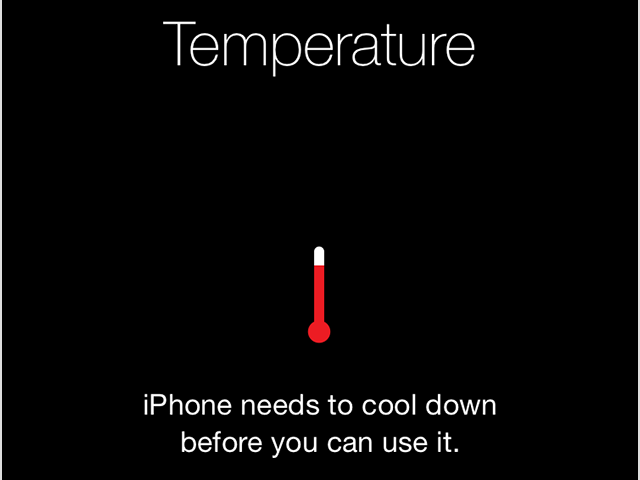
If your iPhone gets too hot, it warns you, “iPhone needs to cool down before you can use it.” It also stops charging, dims or turns off the display, puts its radios in a low-power state and disables the camera flash, although audible turn-by-turn directions will continue. Turn it off and let it cool down for a while.

temperature_cool_down

Monday, July 3, 2017

Quick Tip - How to Find Buried Options in the iOS Settings App

How to Find Buried Options in the iOS Settings App

iOS offers about 40 top-level categories in its Settings app and countless options in those categories. How can you find that little-used setting, particularly since Apple sometimes moves options during major iOS releases? The answer is the Settings app’s hidden Search field. 

To reveal it, pull down on the main settings screen (iPhone) or left sidebar (iPad). Tap the Search field, enter text describing the setting you want to find (try typing Fa to find Facebook, FaceTime, and Safari Favorites, among others), and the results appear immediately. Tap a result to jump to it, but also notice that each result shows a path, so you can learn how to find that setting manually in the future.