When giving commands to Siri,
you can refer to people by relationship, rather than name. So, if you
want to call your mother on your iPhone, you can say “call my mother”
instead of something like “call Natasha Jauch-Hoechstetter.” But to do
this, you need to introduce Siri to your family.
First, make sure you
have a “card” in the Contacts app for yourself, and then go into
Settings > Contacts, scroll down to find and tap My Info, and select
your card so Siri knows who you are. Next, make sure you have a contact
card for your mother, and then tell Siri, “Natasha Jauch-Hoechstetter is
my mother.” Or, if Siri doesn’t hear you correctly, open Contacts, open
your card (not your mother’s!), tap Edit, scroll down, tap “add related
name,” tap the default relationship to pick “mother,” tap the info “i”
icon, select your mother’s card, and tap Done.
Apple just released new versions
of all its operating systems—iOS, macOS, watchOS, and tvOS—fixing bugs,
plugging security holes, and, best of all, adding a few new features.
Here are four things you can do once you’ve updated. (If you’re
concerned that installing the updates may cause other problems, check
with me first.)
1: Sleep better after using your Mac late at night.
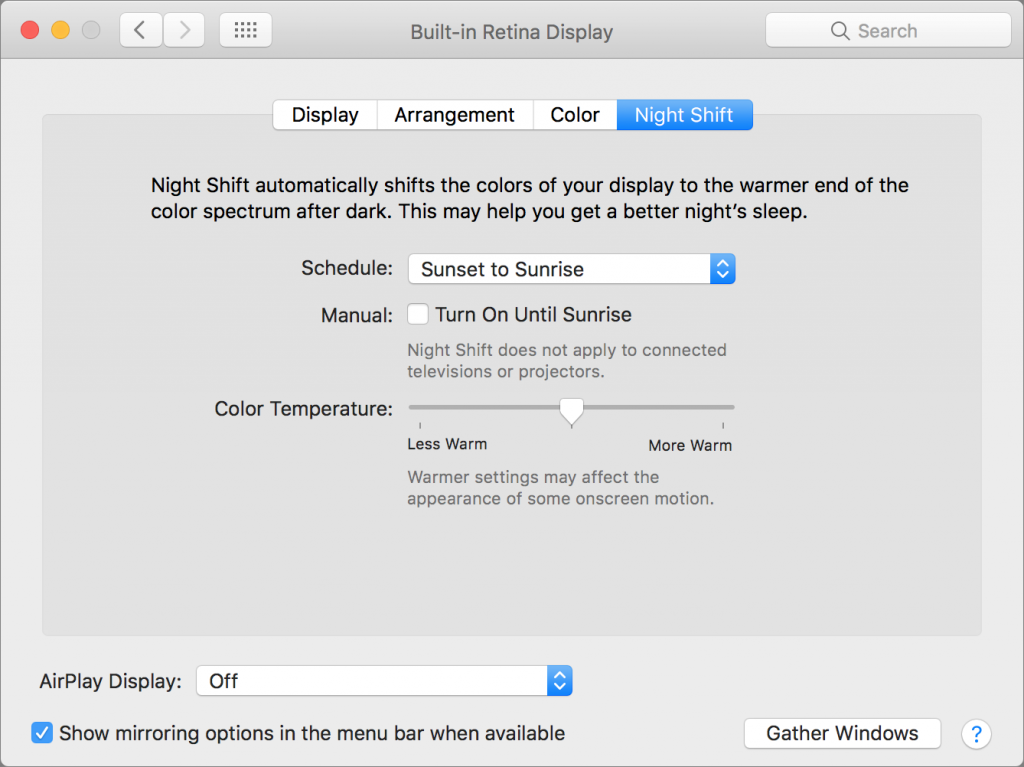
macOS 10.12.4 Sierra has gained Night
Shift, a feature from iOS that automatically shifts the colors of the
screen to the warmer end of the spectrum after dark. Night Shift may
help you sleep better by reducing the amount of blue light that tricks
your body into thinking it’s earlier than it is. To set up Night Shift, open System
Preferences > Displays > Night Shift and choose Sunset to Sunrise
from the Schedule pop-up menu. Night Shift knows when the sun rises and
sets wherever you are, but if you prefer, you can also set custom on and
off times. (If you don’t see the Night Shift button in the Displays
preference pane after upgrading to 10.12.4, your Mac is unfortunately
too old to support Night Shift.)
If you’re working with graphics at
night, or if video looks odd, you can turn off Night Shift manually. Do
that either in the Displays preference pane or by scrolling down in
Notification Center (click it in the upper-right corner of the screen)
to see the Night Shift switch.
2: Find the AirPod that fell between the couch cushions.
Apple’s wireless AirPods earbuds are
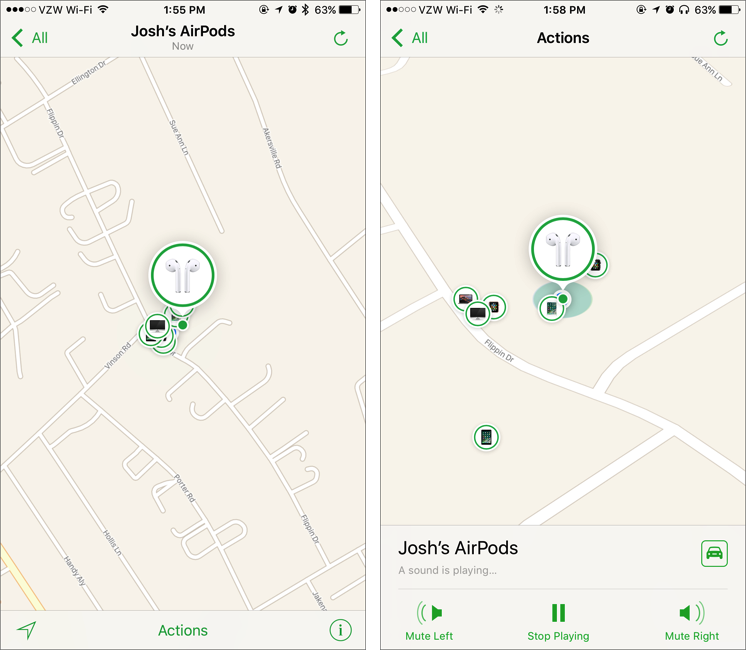
cute, but they’re also easy to misplace. If you can’t find yours, iOS
10.3’s Find My iPhone app can help. Bring it up, tap the AirPods icon in
the display, and then tap the Play Sound button to make them play a
locator sound. If you’ve lost only one AirPod, you can mute the other so
it’s easier to hear where the sound is coming from.
Note that Find My AirPods works only
when in range of a paired iOS device, so it may not help if you lose an
AirPod while running.
3: Don’t be “that person with the Apple Watch” at the theater.
You’re in a darkened theater, at a
movie or a play, and when you move in your seat or cover your mouth to
cough, your Apple Watch’s screen turns on, annoying the people around
you. Even worse is when a notification rolls in, causing the watch to
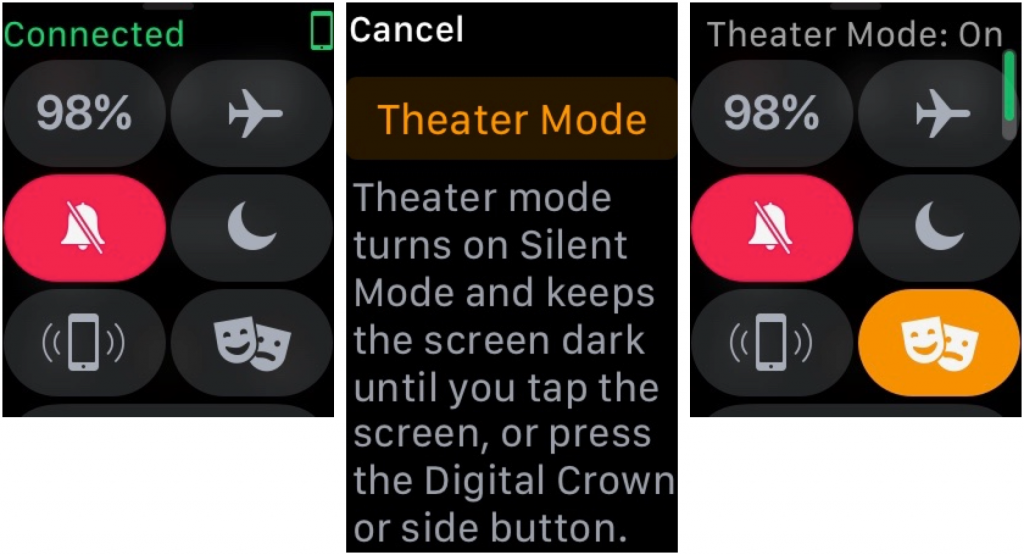
make a sound. Embarrassing, we know. Happily, watchOS 3.2 adds Theater
Mode, which turns on Silent mode and keeps the screen dark by disabling
its standard “raise to wake” behavior. To enable Theater mode, open Control
Center by swiping up from the bottom of the screen. Then tap the Theater
Mode button, which is emblazoned with theater masks. After the
performance, you’ll need to disable Theater mode manually by tapping its
button again.
If you do need to check the time
surreptitiously (who knew this performance would go so long!), tap your
Apple Watch’s screen, or press the Digital Crown or side button.
4: Ask Siri to find your car in a humongous parking lot
We’ve all been there. You parked at
the mall, but got turned around while you were inside, and now you can’t
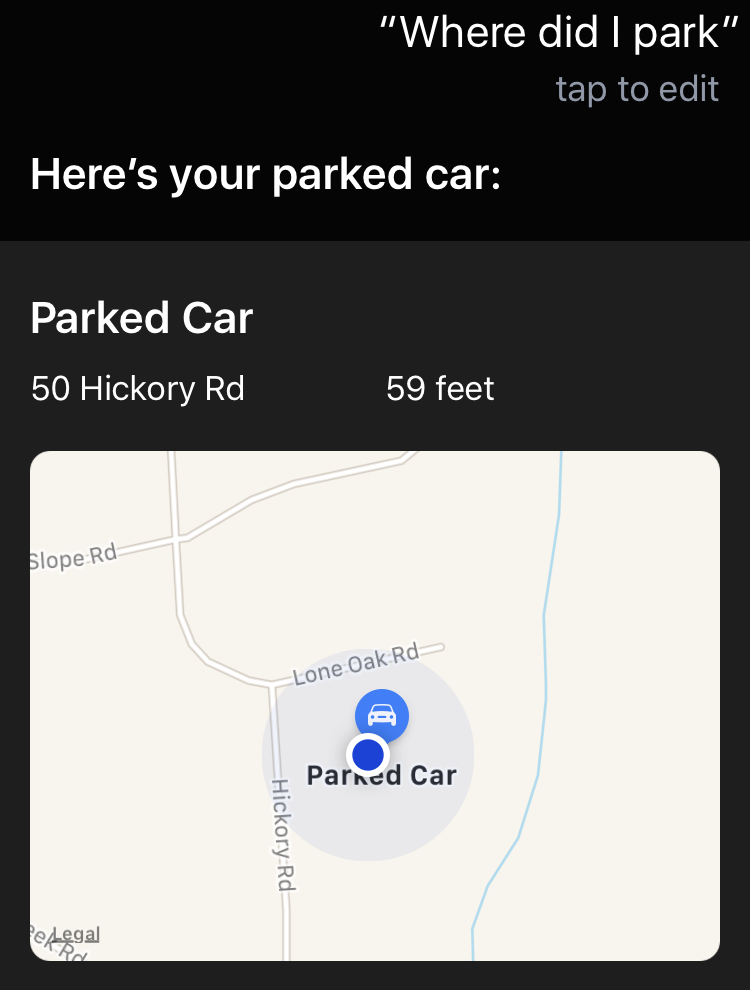
find your car in the sea of automobiles. In iOS 10.3, you can now
search for “parked car” in Maps, or just ask Siri, “Where did I park?”
And if you ever lose your car at a place like Disney World, this feature alone will be worth the price of the iPhone!
Note of caution - I typically tell my clients to wait a minimum of two weeks before installing any new updates such as these. Keep in mind the new releases are DAYS old (as of this post). May want to hold off on installing and see if there are any bugs that need worked out. But at least you know about some new features you can look forward to. Feel free to drop me a line if you are interested if its safe yet. ;-)
Apple Certified Technician, Macintosh Consultant, Tech Geek. I am an Apple Certified Techncian who has worked with Macintosh and Apple computers for over 20 years (Yes even way back with an Apple IIc and green screen monitors). I have a passion for the Mac platform and for helping people with their Macintosh. I love to see that look in someone's eyes when they realize the wonderful things that they can do with their Mac.