Showing posts with label Mac OS. Show all posts

Monday, February 19, 2018

Quick Tip - Here’s How to Teleport to a Specific Mac Folder While Opening or Saving


Ever wanted to jump to a particular folder on your Mac while opening or saving a file? You can, thanks to a clever Finder trick. Whenever you have an Open or Save dialog open in an app, switch to the Finder, find the folder you want to access, and drag its icon into the dialog. Presto—instant navigation to that folder! This trick even works if you drag the proxy icon—the little icon in the title bar of any window—for any folder.
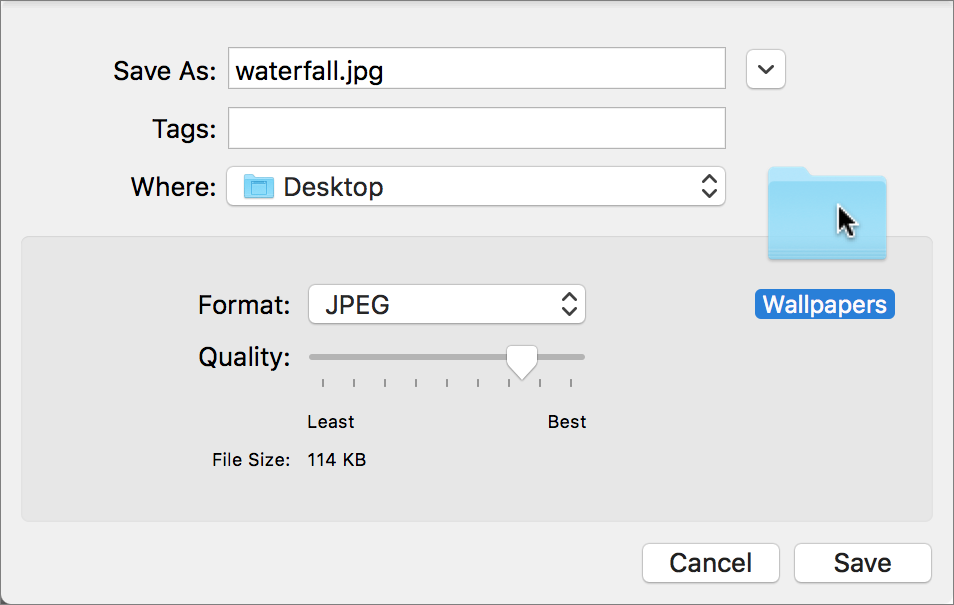
dropping-icon-Save-dialog

Wednesday, July 26, 2017

Quick Tip - Navigate System Preferences easier.

Find System Preferences Faster by Sorting Alphabetically

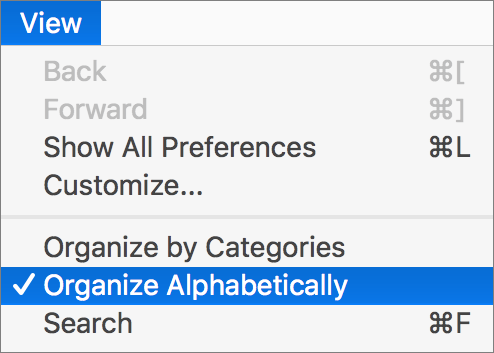
Quick Tip! - By default, System Preferences on the Mac organizes its preference panes by category. However, it doesn’t label those categories, making the organization nearly inscrutable. If you have trouble finding the Accessibility preference pane, for instance, which ends up in the bottom right when sorted by category, there’s a better way.

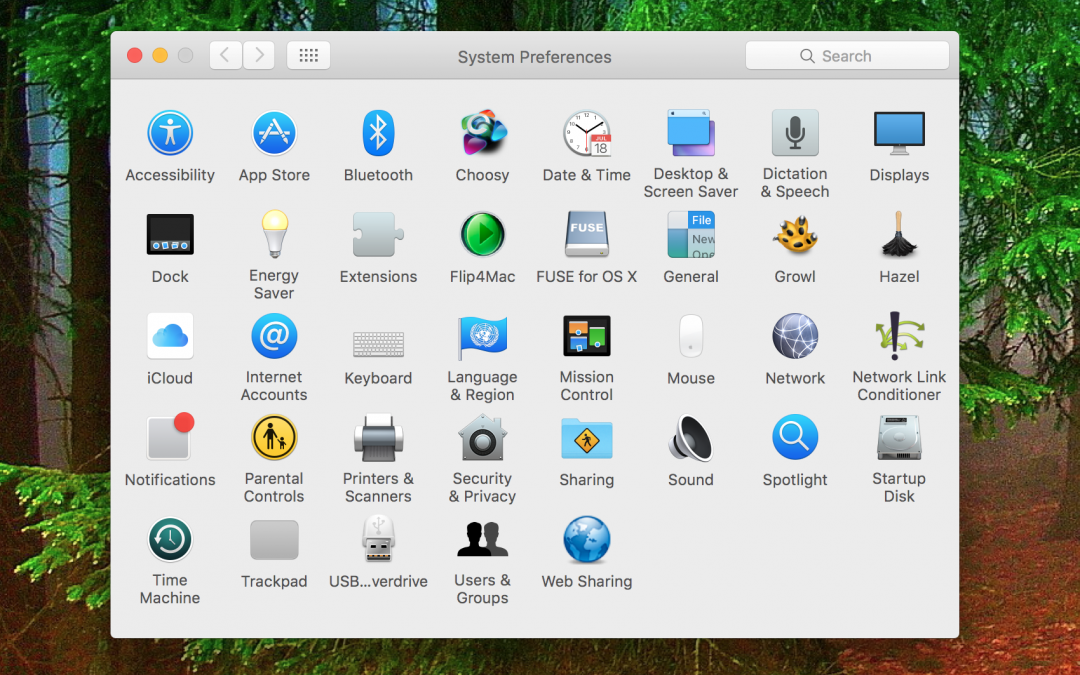
With System Preferences open, choose Organize Alphabetically from the View menu (yes, System Preferences has menus!) to arrange the icons alphabetically by name, putting Accessibility in the upper left. The preference panes are also listed alphabetically in that View menu.

Friday, June 16, 2017

Say “Cheese!” Tips for Taking Mac and iOS Screenshots

Say “Cheese!” Tips for Taking Mac and iOS Screenshots

Did you ever want to capture a picture of what’s on your screen, or at least a part of it? Screenshots aren’t just for technical writers trying to document app behavior—you might also use them to provide feedback on a photo, to document an error message for someone who helps you with your Mac, or to record a particularly funny auto-correct fail in Messages on your iPhone.

macOS and iOS have both long included built-in screenshot features that make it easy to take a high-resolution picture of what you see onscreen. (You can, of course, use a camera to take a photo of your screen, but that will never look as good.)

Taking a screenshot in iOS is super simple, and it works the same on an iPhone, iPad, or iPod touch. Just press the Home and Sleep/Wake buttons simultaneously. The screen flashes, and iOS saves the screenshot to your Photos app—look at the bottom of the Photos collection or, if you’ve turned on iCloud Photo Library, the All Photos album.

The same technique works on the Apple Watch, where you press both the digital crown and the side button simultaneously. (Accidental presses of those buttons explains why random Apple Watch screenshots might appear in Photos.)

On the Mac, you can take your pick from three built-in methods of taking screenshots:

 
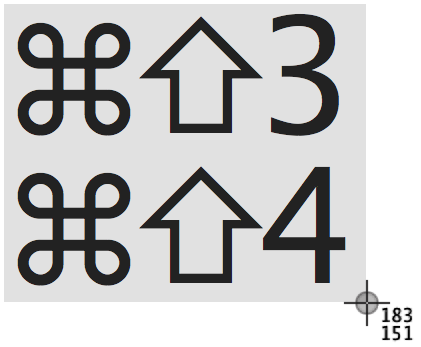
If you take a lot of screenshots, consider memorizing macOS’s keyboard shortcuts. For a full-screen screenshot, press Command-Shift-3. For a screenshot of an arbitrary size, press Command-Shift-4 and drag out a rectangle. To capture just an object like a window, press Command-Shift-4, hover the pointer over the window, press the Space bar to show the camera cursor over the highlighted object, and then click to take the screenshot.
A few notes:
  • The Command-Shift-4 shortcut is the only way to capture a menu.
  • On a MacBook Pro with a Touch Bar, after you press Command-Shift-4, notice the helpful buttons on the Touch Bar.
  • All screenshots are saved as PNG files on your Desktop and named with the date.
Grab-iconIf those keyboard shortcuts sound hard to remember, try Apple’s Grab app, which is hidden away in the Utilities folder inside your Applications folder. It’s a simple app, but it can take full-screen, window, and selection screenshots, and it walks you through the process. You can also use Grab to capture a full-screen screenshot with a timer, which is handy if what you want to record appears only while you’re dragging an icon or another object, for instance. Captured screenshots appear in Grab as Untitled TIFF documents that you can close, copy, save, or print.
PDF-Preview-iconWant to mark up a screenshot with circles and arrows and a paragraph of text? For that, use Apple’s surprisingly powerful Preview app, which takes screenshots as editable graphic documents. Choose File > Take Screenshot > From Selection, From Window, or From Entire Screen. That last option takes a timed screenshot so you can set up any temporary conditions while the timer counts down. It’s the only way to capture the pointer in a screenshot. To access the tools you need to add shapes or text to your screenshot, choose View > Show Markup Toolbar. When you’re done, you can save the screenshot in a variety of formats. For more about what you can do with Preview, read Take Control of Preview.

You can also take screenshots using a cornucopia of third-party screenshot utilities. In general, they don’t offer much more than Apple’s options when it comes to capturing screenshots. Where they stand out is providing better tools for marking up and manipulating screenshots, and in offering an interface for managing and sharing screenshots. Choosing among them is largely a matter of personal preference, but check out Evernote’s free Skitch (My Favorite), the free Monosnap, and Global Delight’s $29.99 Capto

Whatever method you choose, remember that a picture may be worth a thousand words, but the right screenshot is even more valuable.

Thursday, May 18, 2017

Three Clipboard Utilities to Enhance Copy & Paste

Perhaps the greatest unheralded innovation of the computer age is Copy & Paste. You may not think about the humble clipboard much, but Copy & Paste has saved you incalculable amounts of effort by enabling you to copy something you’ve done before to the clipboard, paste it into another document or app, and make any necessary changes. Whether you’re updating a monthly report, tweaking graphics for an annual party, or entering sales numbers in a custom database, Copy & Paste ensures that you don’t have to retype data or start from scratch.
What if you could make Copy & Paste even more powerful? With the right clipboard utility installed on your Mac, you gain two major new features:
  • Use clipboard history to access previously copied data. By default, every time you copy something to the clipboard, it replaces whatever was there before. With a clipboard utility, though, you can see a list of items you’ve previously copied to the clipboard and paste any one of them, which is vastly easier than finding and copying the data again. Clipboard utilities even preserve your clipboard history across restarts!
  • Edit or filter the data on the clipboard before pasting. This capability is useful, for instance, if there’s a mistake in the contents of the clipboard, if you copied styled text but want to paste plain text, or if you want to replace all double spaces in the copied text with single spaces.
Which clipboard utility is right for you depends on what else you might want it to do, or you might even have one installed already without realizing. That’s because clipboard enhancements are a bit like blades in a Swiss Army knife: they tend to be bundled into other utilities. You won’t go wrong with any of these clipboard boosters: the macro utility Keyboard Maestro, the launcher LaunchBar, and the dedicated clipboard helper Copy’em Paste.
Keyboard-Maestro-iconKeyboard Maestro ($36) is a macro utility, which means that it lets you string together a series of actions—copy this, switch apps, click there, paste, switch back, for instance—and then invoke that series with a trigger such as a hotkey, menu command, timer, or system activity. Keyboard Maestro offers hundreds of actions and numerous triggers, but from the clipboard perspective, it provides a persistent clipboard history, multiple named clipboards, filtering of clipboard contents when pasting, removal of styles from pasted text, and a user-specified hotkey for anything you want to do. You cannot, however, edit clipboard text manually.
LaunchBar-iconLaunchBar ($29) is a launcher, so its primary feature is opening or switching to an application or file by typing a hotkey followed by a few letters from the name of the app or file. That’s hugely useful in its own right, but LaunchBar also maintains a filterable clipboard history across restarts, lets you paste a clipping as plain text, and can merge copied text with whatever is already on the clipboard. Other apps in this category include Alfred (with the optional £19 Powerpack), Butler ($20), and QuickSilver (donationware).
Copy'em-Paste-iconCopy’em Paste ($14.99) focuses on clipboard enhancements, bundling nearly every clipboard-related feature you could want into an attractive interface. It offers a full clipboard history, makes it easy to paste multiple items quickly or even in a batch, can transform pasted text in a variety of ways, and lets you organize clippings into groups. It also enables you to edit text clippings, search for text in your clippings, and ignore apps whose clipboard changes just clutter your clipboard history. A major competitor is CopyPaste Pro ($30).
Regardless of which of these utilities you choose, you’ll soon be a pro at juggling the contents of your clipboard … and wasting a ton less time!

Friday, April 14, 2017

Build Travel Time into Your Calendar Alerts

Build Travel Time into Your Calendar Alerts

We’ve all done it. You swing into a meeting late, and as everyone looks up at you accusingly, you mutter, “Sorry. Traffic was terrible.” Maybe it was, but if you’d left at the right time for the traffic conditions, you could have arrived on time. Happily, the Calendar apps in both macOS and iOS can build travel time into event alerts so you can leave at the right time. There’s a bit of setup, but once you form the habit of attaching locations to your events, you’ll get a reputation for punctuality.

First, if you’re working on an iOS device, make sure Calendar can access your location by going to Settings > Privacy > Location Services > Calendar and selecting While Using the App.
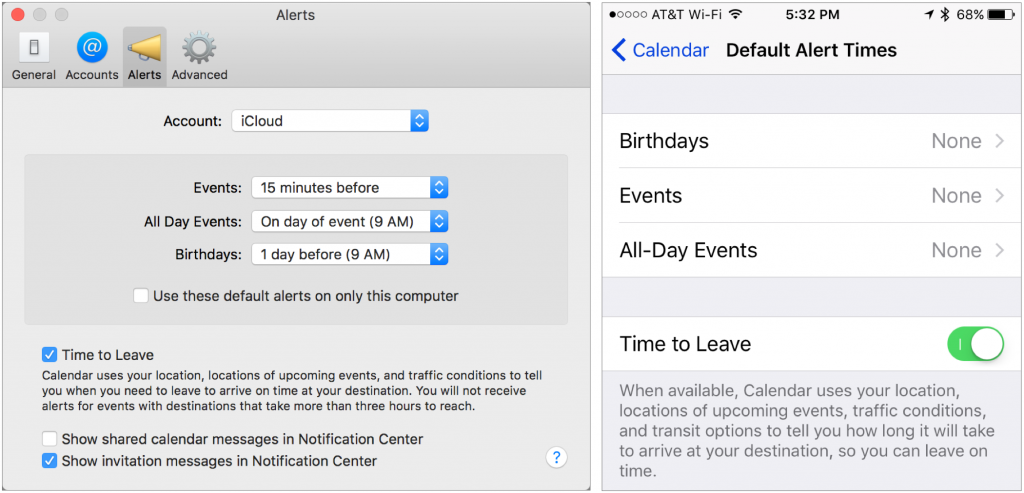
Next, you need to make sure the Time to Leave option is turned on. On the Mac, choose Calendar > Preferences > Alerts and select the Time to Leave checkbox. In iOS, go to Settings > Calendar > Default Alert Times and enable Time to Leave.


Now follow these steps:
  1. Create a new event, and enter a title and the start time. Travel time doesn’t work with all-day events.
  2. In the Location field, start typing your destination’s name or address. You must be able to reach the destination within 3 hours to receive alerts about when to leave. 
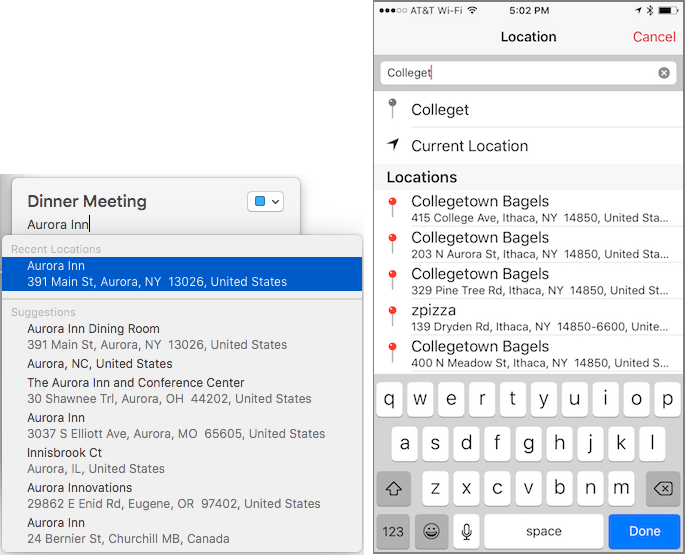
    Calendar is smart about this, offering matches from your contacts, from recently visited places, and then from place names and addresses near you. So you could type a friend’s name and pick their card from Contacts, or a place name like “Tompkins County Public Library,” or even a specific address, like “806 State Street.”
    Calendar-PickLocation

  3. Regardless, after typing a partial name or address, you must pick one of Calendar’s suggestions so it knows the exact location of your destination.
  4. The next step is a bit different between the Mac and iOS:
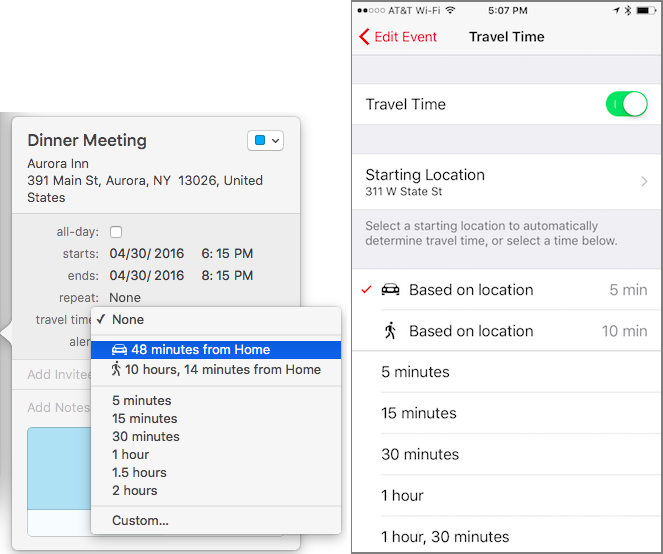
    • On the Mac, in the Travel Time pop-up menu (click once to reveal it), choose the automatically generated travel time for driving or walking, or, if your city is supported, public transit. You can’t change your starting location, which is based on the location of events in the previous 3 hours (it assumes you’re there!), your work address during work hours, your home address during off hours, or your computer’s location if all else fails. (The addresses come from the card in the Contacts app that is open when you choose Card > Make This My Card.)
    • In iOS, tap Travel Time and in the Travel Time screen, enable the Travel Time switch. A starting location may be picked for you, based on your current location and time of day, or based on a previous event, but you can always tap Starting Location and pick a different spot. Then tap a travel time based on location for walking, driving, or transit, which will reflect both your starting and ending locations, plus the traffic conditions.
      Calendar-SetTravelTime

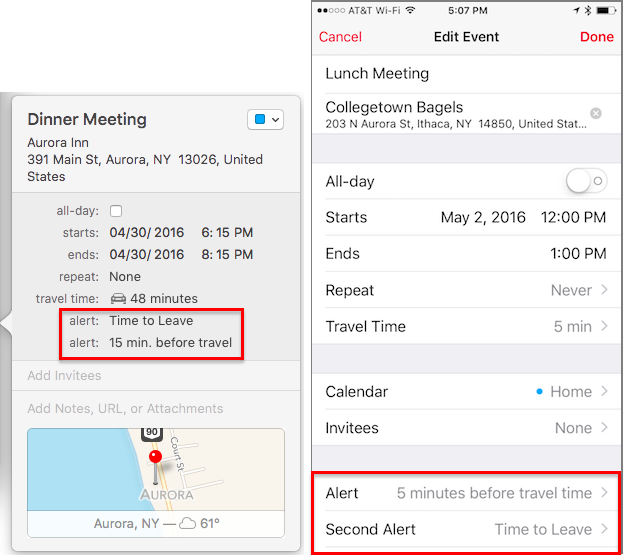
  5. Now it’s time to back out of the Travel Time screen and set alerts based on the travel time, which may take traffic conditions into account. By default, setting travel time creates an alert for Time to Leave, although you may wish to set a second alert that gives you a few minutes to get ready beforehand.
    Calendar-FinalEvent

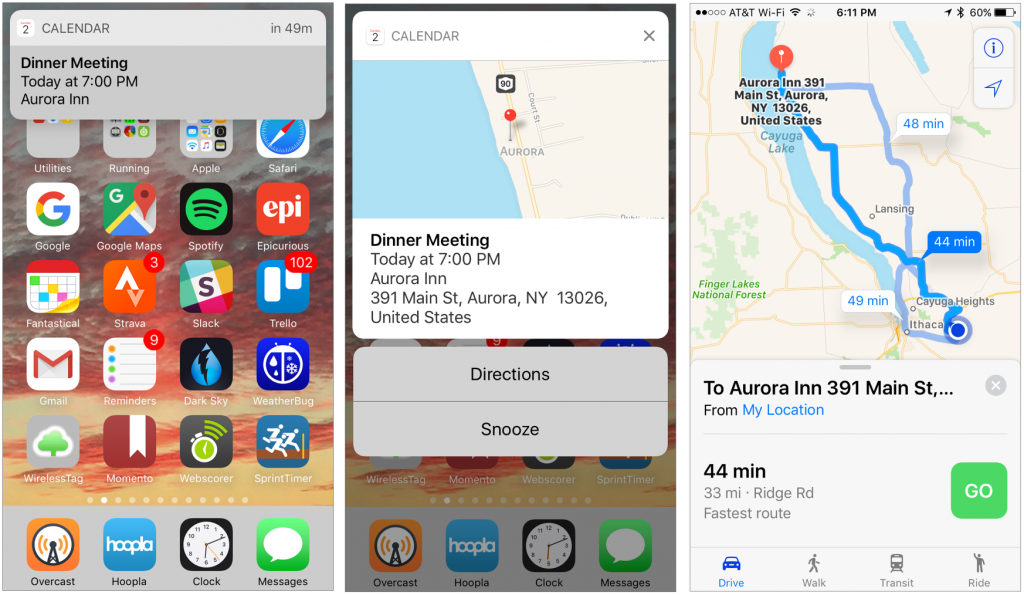
That’s it, but with one important bonus. When you see the alert on an iPhone 6s or later, you can 3D Touch the alert to open a preview that has a link for directions; tap Directions to view the travel directions in the Maps app. If your iPhone doesn’t support 3D Touch, tap the alert to open the event in Calendar, after which you can tap the map preview to open the location in Maps.


Once you get the hang of setting up the events, getting alerts that are sensitive to travel time and include directions is like living in the future!

Wednesday, March 29, 2017

4 New Apple OS Features You Can Use Today

Apple just released new versions of all its operating systems—iOS, macOS, watchOS, and tvOS—fixing bugs, plugging security holes, and, best of all, adding a few new features. Here are four things you can do once you’ve updated. (If you’re concerned that installing the updates may cause other problems, check with me first.)

1: Sleep better after using your Mac late at night.

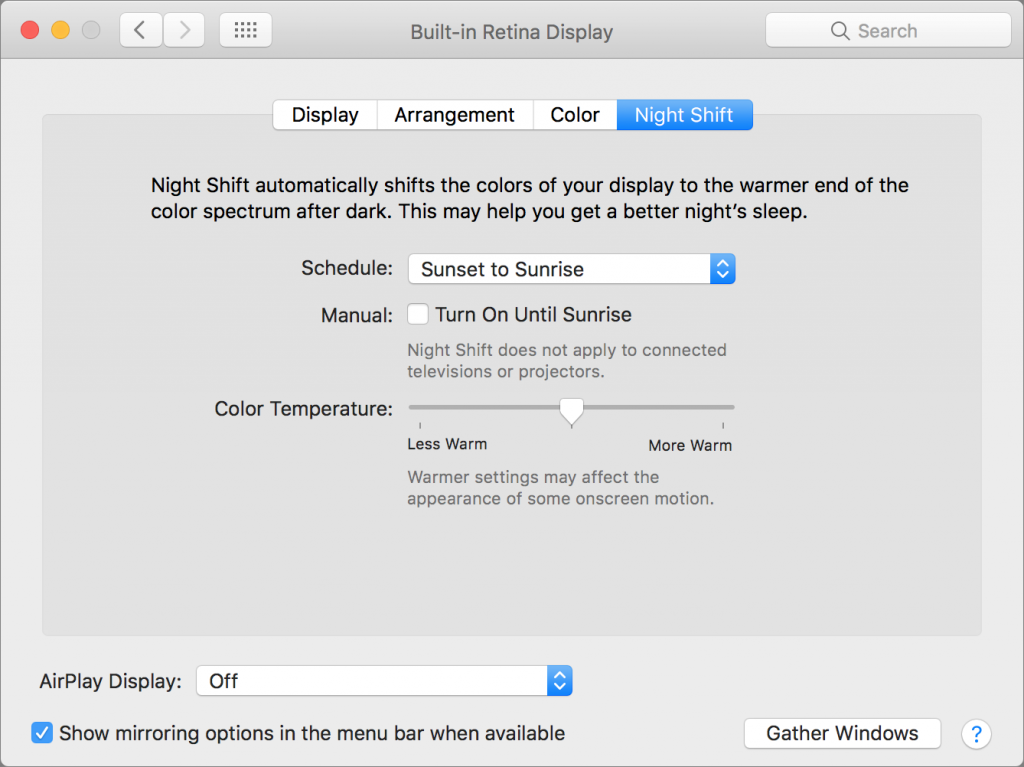
macOS 10.12.4 Sierra has gained Night Shift, a feature from iOS that automatically shifts the colors of the screen to the warmer end of the spectrum after dark. Night Shift may help you sleep better by reducing the amount of blue light that tricks your body into thinking it’s earlier than it is.
To set up Night Shift, open System Preferences > Displays > Night Shift and choose Sunset to Sunrise from the Schedule pop-up menu. Night Shift knows when the sun rises and sets wherever you are, but if you prefer, you can also set custom on and off times. (If you don’t see the Night Shift button in the Displays preference pane after upgrading to 10.12.4, your Mac is unfortunately too old to support Night Shift.)


If you’re working with graphics at night, or if video looks odd, you can turn off Night Shift manually. Do that either in the Displays preference pane or by scrolling down in Notification Center (click it in the upper-right corner of the screen) to see the Night Shift switch.

2: Find the AirPod that fell between the couch cushions.

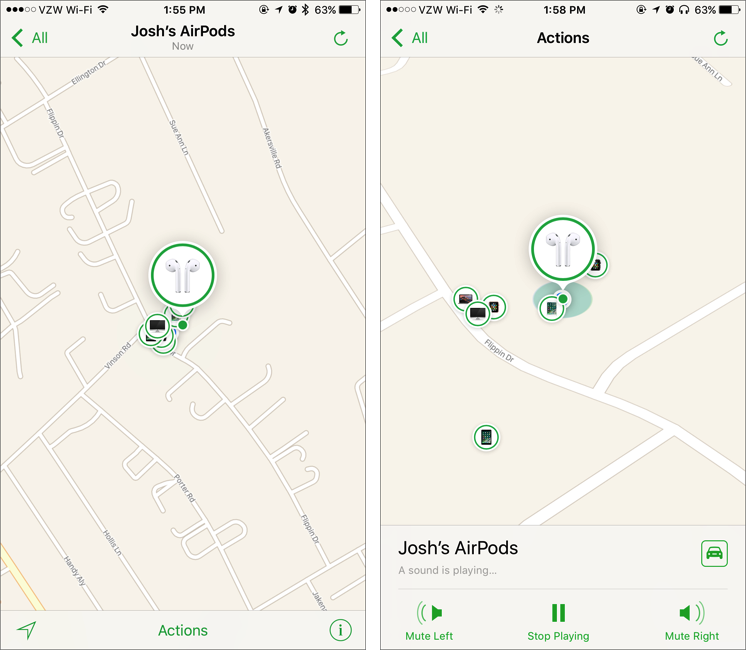
Apple’s wireless AirPods earbuds are cute, but they’re also easy to misplace. If you can’t find yours, iOS 10.3’s Find My iPhone app can help. Bring it up, tap the AirPods icon in the display, and then tap the Play Sound button to make them play a locator sound. If you’ve lost only one AirPod, you can mute the other so it’s easier to hear where the sound is coming from.


Note that Find My AirPods works only when in range of a paired iOS device, so it may not help if you lose an AirPod while running.

3: Don’t be “that person with the Apple Watch” at the theater.

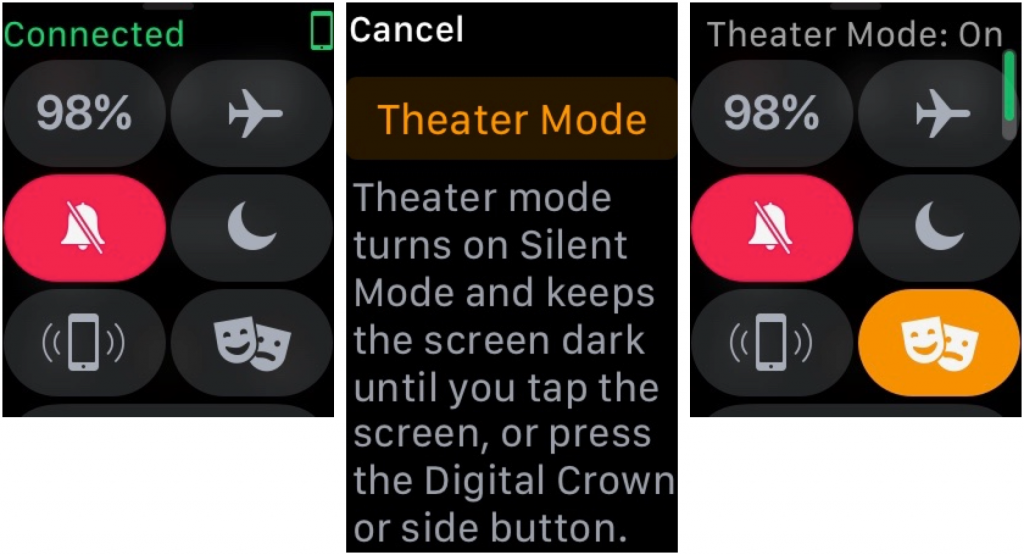
You’re in a darkened theater, at a movie or a play, and when you move in your seat or cover your mouth to cough, your Apple Watch’s screen turns on, annoying the people around you. Even worse is when a notification rolls in, causing the watch to make a sound. Embarrassing, we know. Happily, watchOS 3.2 adds Theater Mode, which turns on Silent mode and keeps the screen dark by disabling its standard “raise to wake” behavior.
To enable Theater mode, open Control Center by swiping up from the bottom of the screen. Then tap the Theater Mode button, which is emblazoned with theater masks. After the performance, you’ll need to disable Theater mode manually by tapping its button again.


If you do need to check the time surreptitiously (who knew this performance would go so long!), tap your Apple Watch’s screen, or press the Digital Crown or side button.

4: Ask Siri to find your car in a humongous parking lot

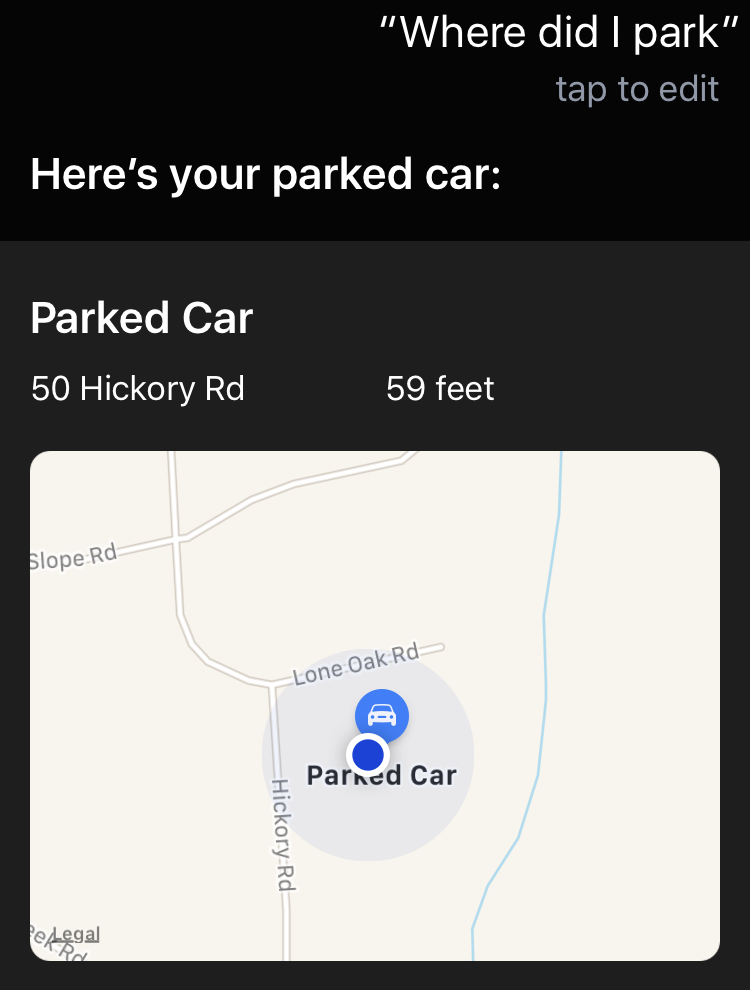
We’ve all been there. You parked at the mall, but got turned around while you were inside, and now you can’t find your car in the sea of automobiles. In iOS 10.3, you can now search for “parked car” in Maps, or just ask Siri, “Where did I park?”


And if you ever lose your car at a place like Disney World, this feature alone will be worth the price of the iPhone!

Note of caution - I typically tell my clients to wait a minimum of two weeks before installing any new updates such as these. Keep in mind the new releases are DAYS old (as of this post). May want to hold off on installing and see if there are any bugs that need worked out. But at least you know about some new features you can look forward to. Feel free to drop me a line if you are interested if its safe yet. ;-)